
Help
Help
Short answers about switching devices, iCloud, backups and record keeping. You will find the same texts in the app under Settings, Help.
- New device
- Apple ID
- Without iCloud
- Backup
- Recently Deleted
- Record keeping
- Check
New iPhone, iPad or Mac
Your data is tied to your Apple ID, not to a Paidoo account.
If you set up the new device from your iCloud backup, Paidoo is back right away with all your invoices.
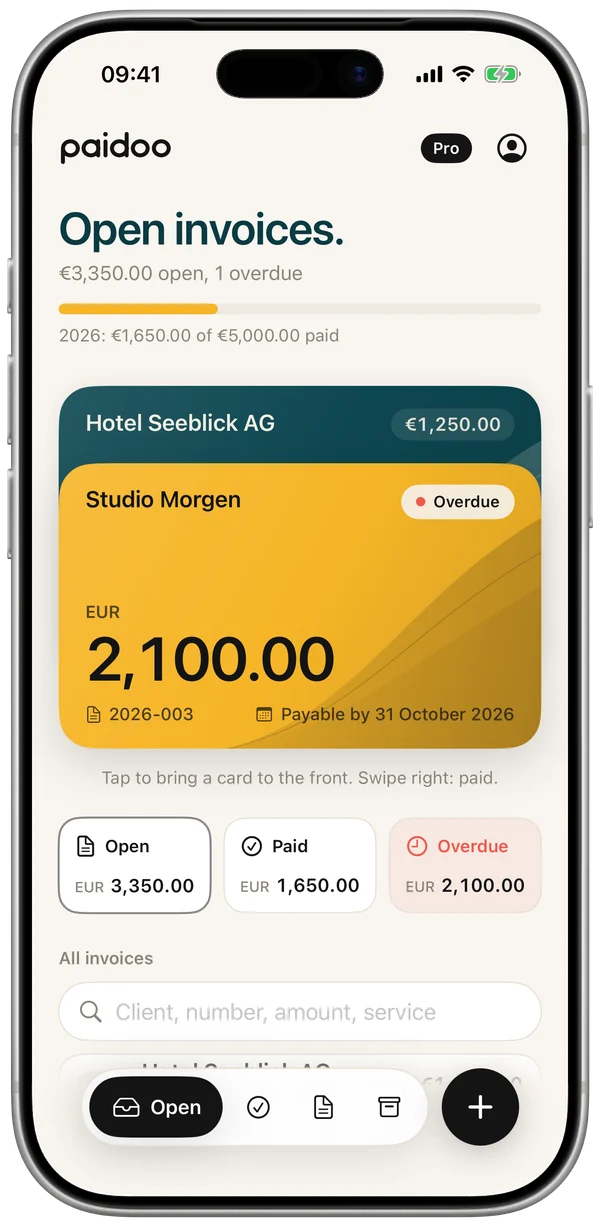
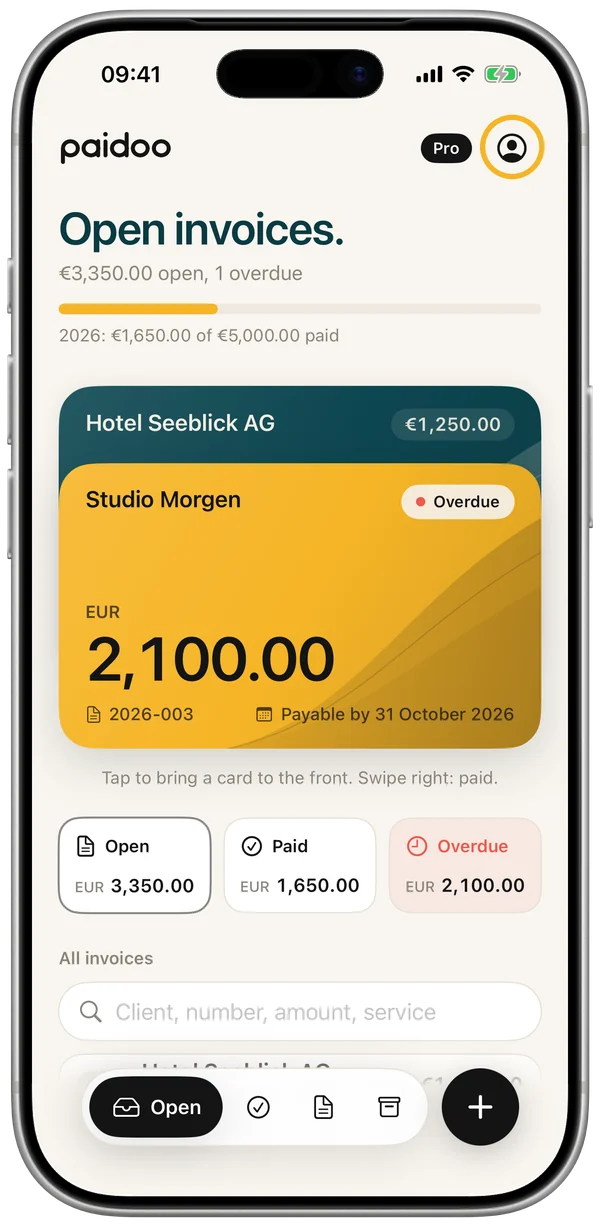
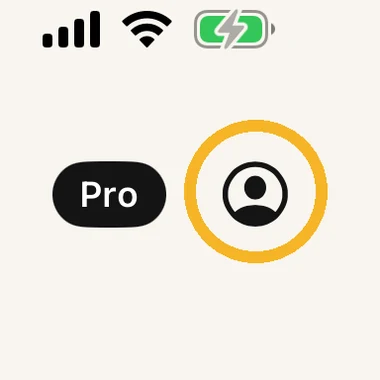
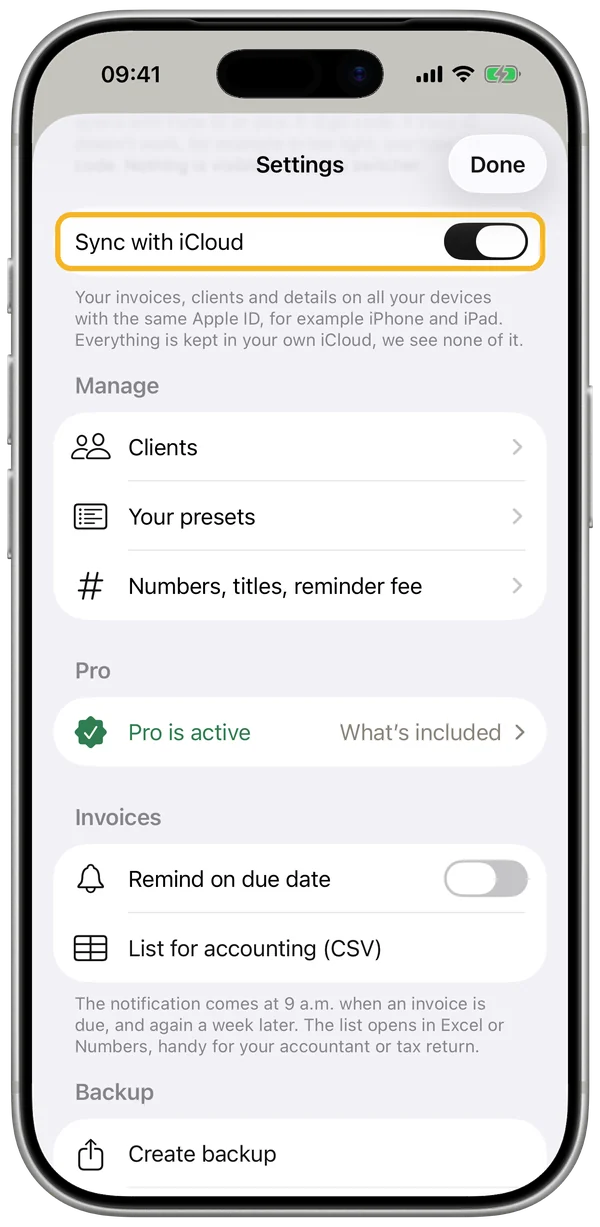
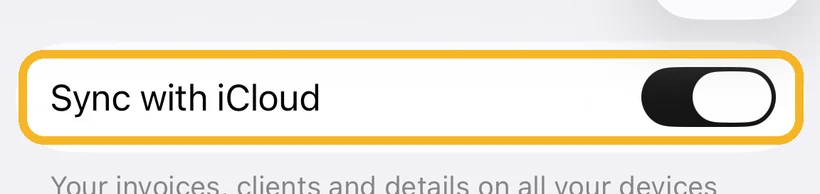
If you set it up as new, download Paidoo from the App Store and open the app with the same Apple ID. Paidoo then fetches your data from iCloud by itself. If it does not appear, check in Settings that “Sync with iCloud” is switched on and that you are signed in with the same Apple ID in the device settings. On iPhone, pull down on the home screen to fetch the latest state.
Paidoo Pro is also tied to your Apple ID. If it does not appear by itself: Settings, “Restore previous purchase”.
How it works, step by step
On Mac and iPad, open Settings in the sidebar on the left, on the Mac also with ⌘ and comma.
New Apple ID, bring your old data
iCloud belongs to the Apple ID. With a new Apple ID, Paidoo cannot see the data of the old one.
If you sign in on your device with a different Apple ID, Paidoo asks whether your data should go to this iCloud: «Move to this iCloud» or «Keep on this device only». Nothing goes into another iCloud without asking.
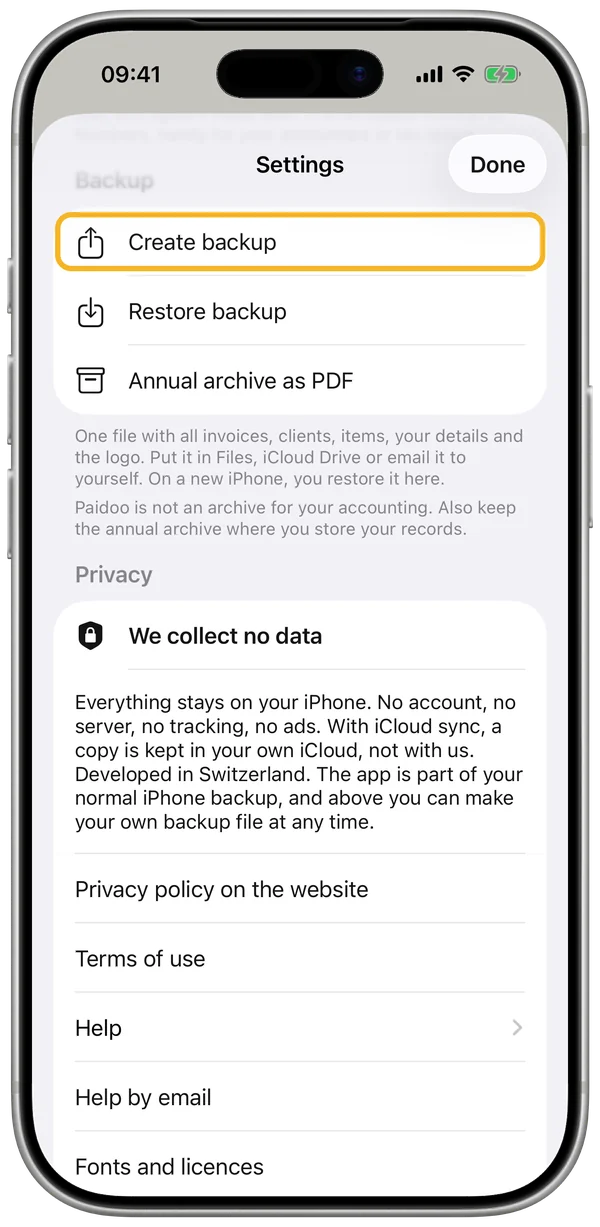
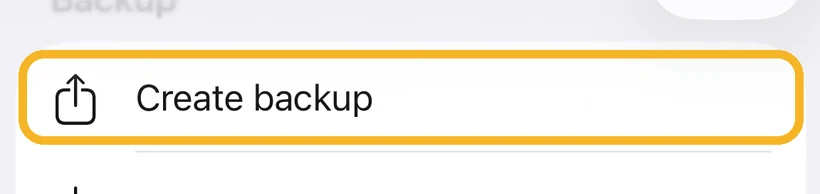
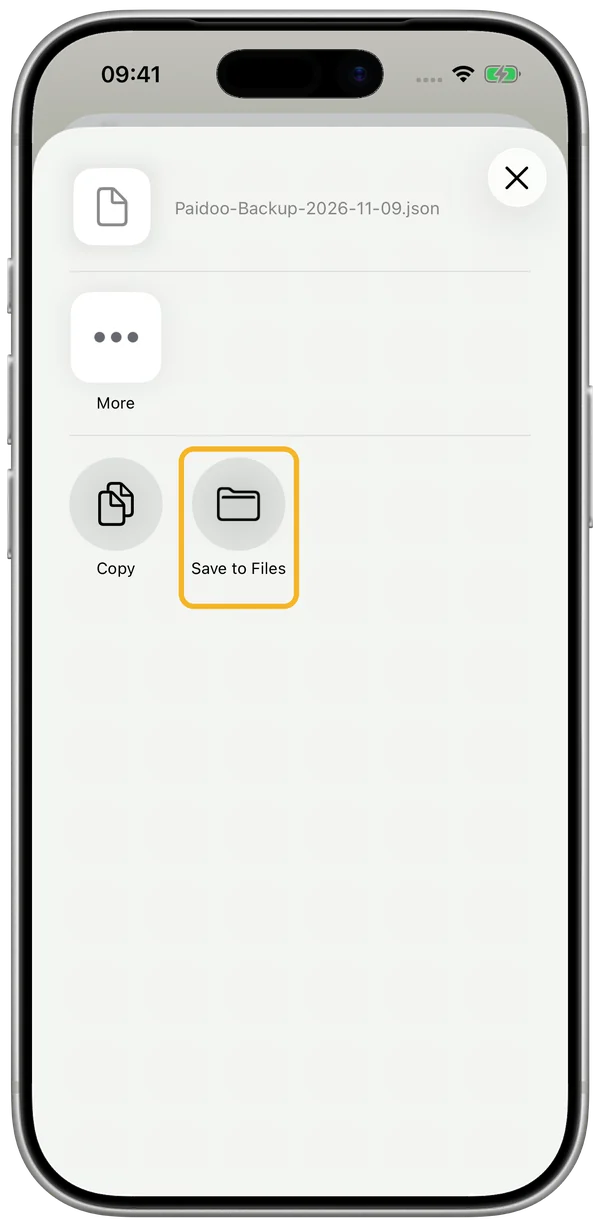
Here is how to bring it along: on the device that still has your data, choose “Create backup” in Settings and share the file via AirDrop, Mail or Files.
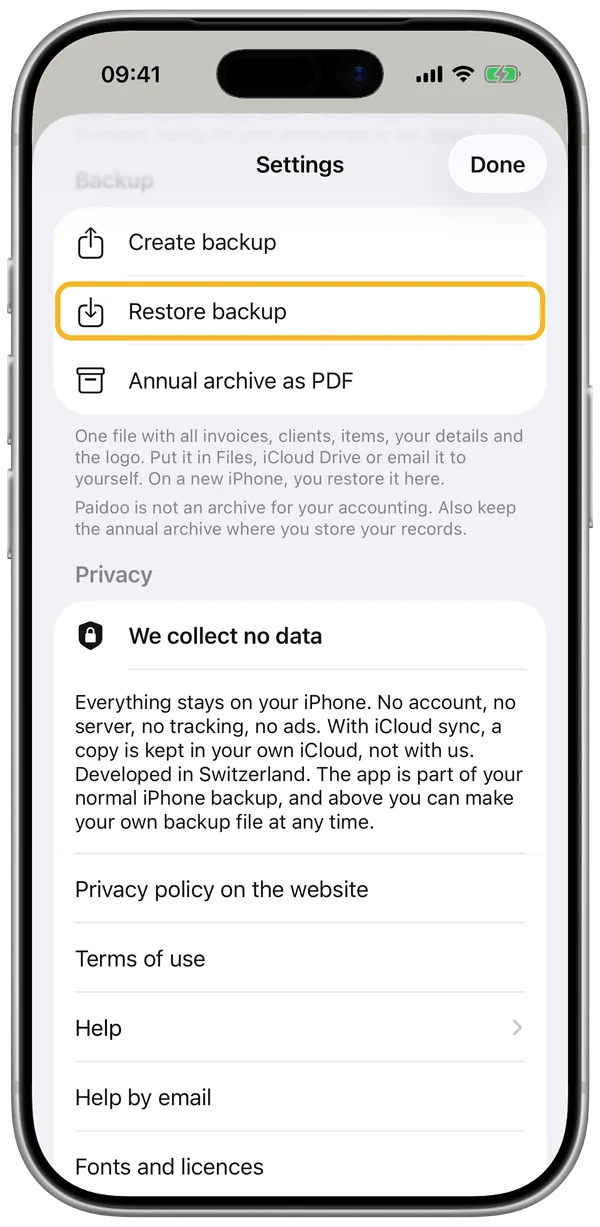
On the new device, choose “Restore backup” in Settings and select the file. Invoices, customers, numbers and logo are then back.
If you no longer have the old device, briefly sign in with the old Apple ID on any iPhone or iPad, open Paidoo and create the backup there.
How it works, step by step
On Mac and iPad, open Settings in the sidebar on the left, on the Mac also with ⌘ and comma.
Keep iPhone, iPad and Mac the same
Sign in with the same Apple ID on all devices. There is nothing else to set up.
Your data is kept in your private iCloud. You see it in the device settings under your name, «iCloud», in the storage section.
If you change the same entry on two devices, the newer change applies. On iPhone, pull down on the home screen to fetch the latest state.
If a different Apple ID is signed in on a device, Paidoo asks whether your data should go to this iCloud.
Working without iCloud
iCloud sync is switched on from the start. Your data is then kept in your own private iCloud, and we see none of it. In the iPhone settings under your name, «iCloud», the storage section shows how much space Paidoo uses. You can also delete the data in iCloud there.
You can switch it off at any time in Settings. Paidoo then stops syncing, and new changes stay on this device. What is already in iCloud stays there until you delete it in your device’s settings under iCloud.
Without iCloud, it is best to create a backup regularly and keep it outside the device. Paidoo reminds you.
How it works, step by step
On Mac and iPad, open Settings in the sidebar on the left, on the Mac also with ⌘ and comma.
Create and restore a backup
iCloud sync keeps your devices the same. The backup file is for emergencies, for example a new Apple ID.
In Settings, “Create backup” makes a file with all invoices, customers, items, your details and logos.
Put it in Files, in iCloud Drive, on a computer, or email it to yourself.
With “Restore backup”, everything comes back. Whatever was on the device before, Paidoo sets aside as a precaution.
How it works, step by step
On Mac and iPad, open Settings in the sidebar on the left, on the Mac also with ⌘ and comma.
Recently Deleted
If you delete an invoice, a quote or another document, it stays under «Recently Deleted» for 30 days. Until then you can restore it, on all your devices. After that it is gone for good.
You find «Recently Deleted» at the bottom of the archive, on Mac and iPad also in the sidebar under «Invoices». It appears as soon as something has been deleted. A restored document keeps its number.
A deleted invoice keeps its number. Paidoo does not give it out again.
Accounting package
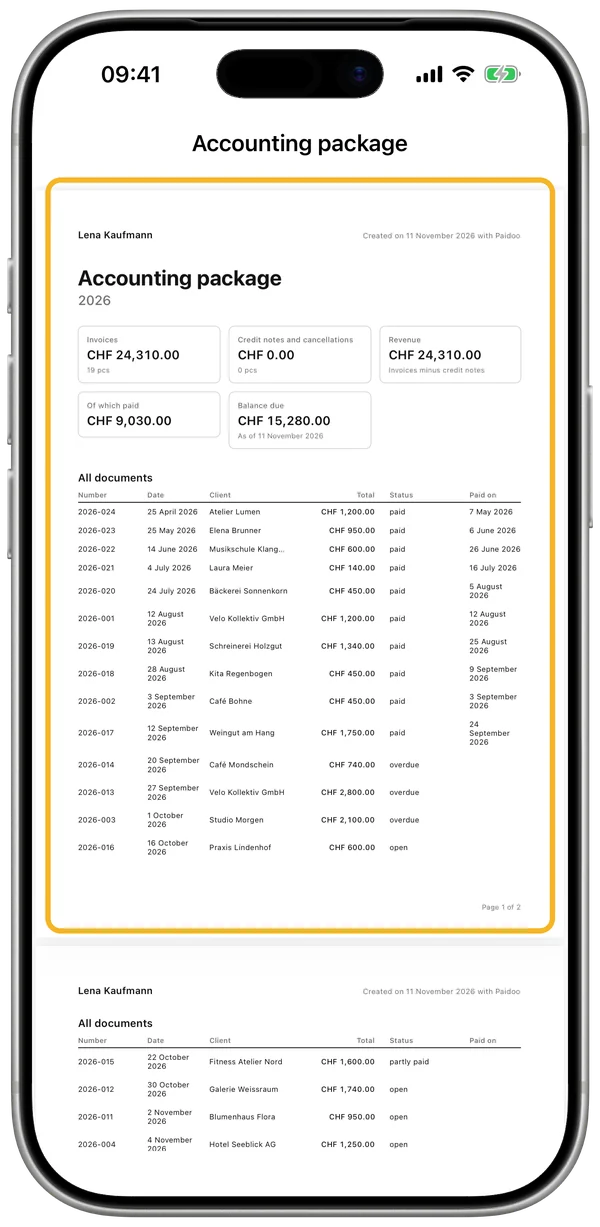
Invoices must be kept for years. Paidoo helps you write them, but it does not replace an archive or accounting. For your accountant there is the accounting package, also without Pro.
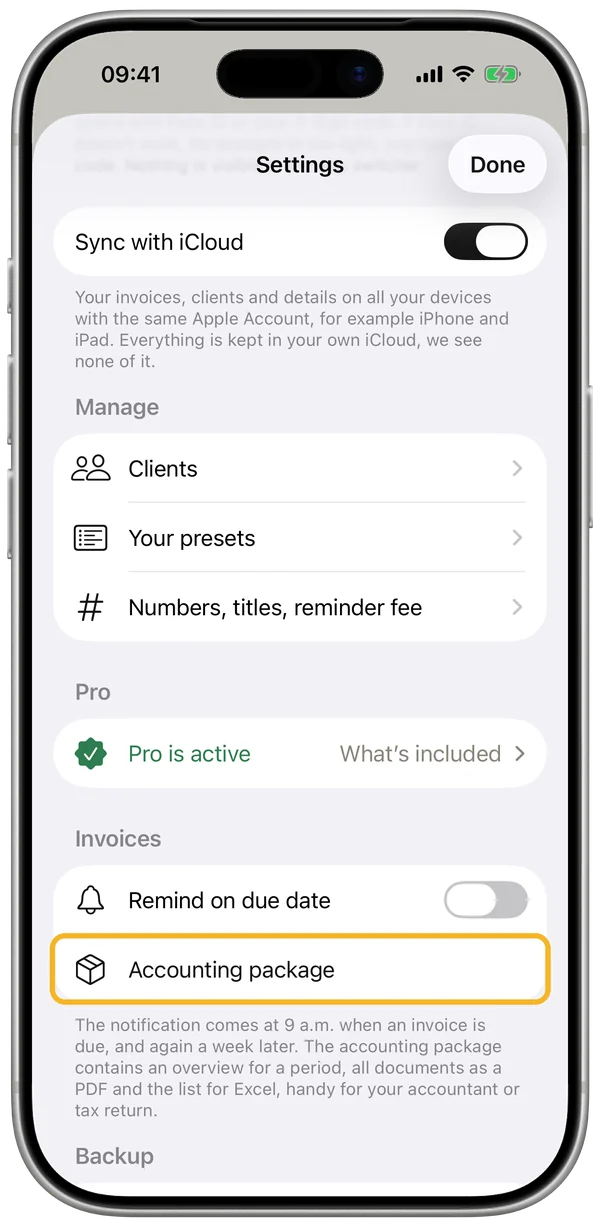
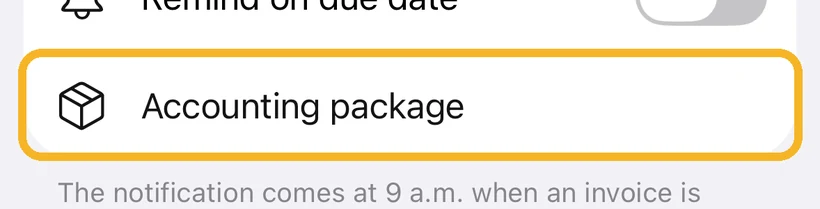
- Open Settings and, under «Invoices», tap «Accounting package».
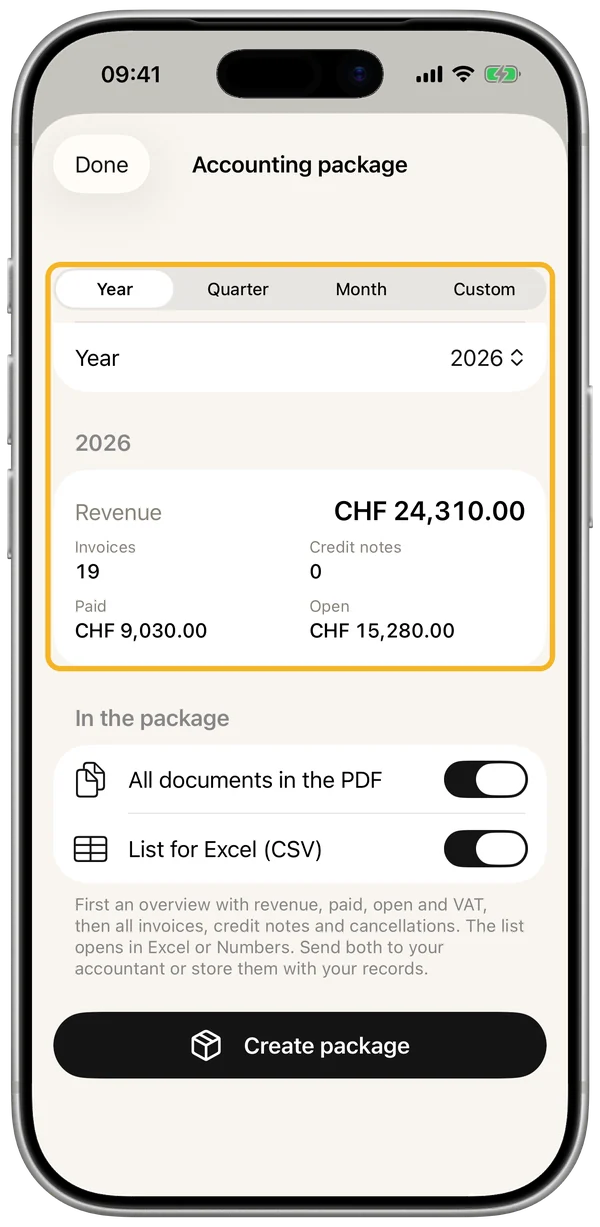
- Choose the period: year, quarter, month or a custom period.
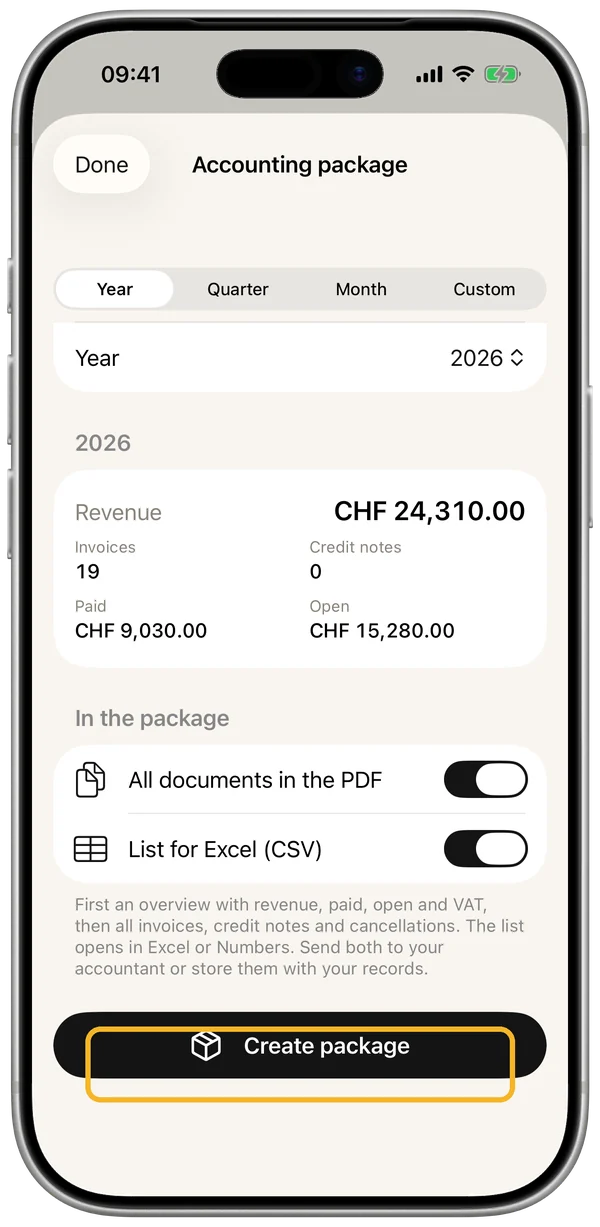
- Choose what goes in: all documents in the PDF and, if you like, the list for Excel.
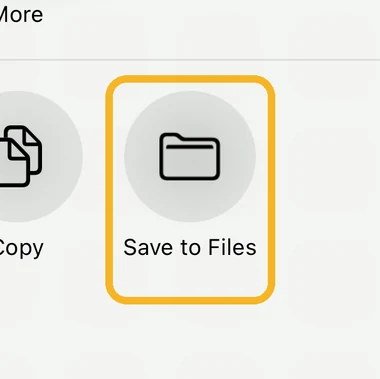
- Tap «Create package» at the bottom and share it by email, AirDrop or «Save to Files».
At the front of the PDF there is an overview with revenue, credit notes, paid, open, VAT per rate (if you charge it) and a list of all documents. Behind it come all invoices, credit notes and cancellations.
Store the package where you keep your records, or send it to your accountant.
Hand over your documents to your accountant →
How it works, step by step
On Mac and iPad, open Settings in the sidebar on the left, on the Mac also with ⌘ and comma.
Paidoo on Mac and iPad
On Mac and iPad, all areas are on the left: Overview, Invoices, Clients, Your presets, Help and Settings. At the top of the sidebar you make it narrow or wide.
On the Mac, ⌘N writes a new invoice and ⇧⌘N a new quote, ⌘, opens the settings. On iPad, the shortcuts work when a keyboard is connected.
On the Mac, a click next to a window closes it again. While you are writing an invoice it stays open, so nothing gets lost.
With the same Apple ID and iCloud sync, you have the same invoices on all your devices. You buy Paidoo Pro once, and it works on iPhone, iPad and Mac.
«Not backed up yet»
Paidoo shows this note on the home screen when your data is only on this device: iCloud sync is not backing up right now, and you have not created a backup file for more than 30 days.
Tap «Back up». Paidoo asks «How do you want to back up?» and offers «Turn on iCloud» or «Check iCloud», «Create backup» and «Later». With «Later», the note goes away for 14 days.
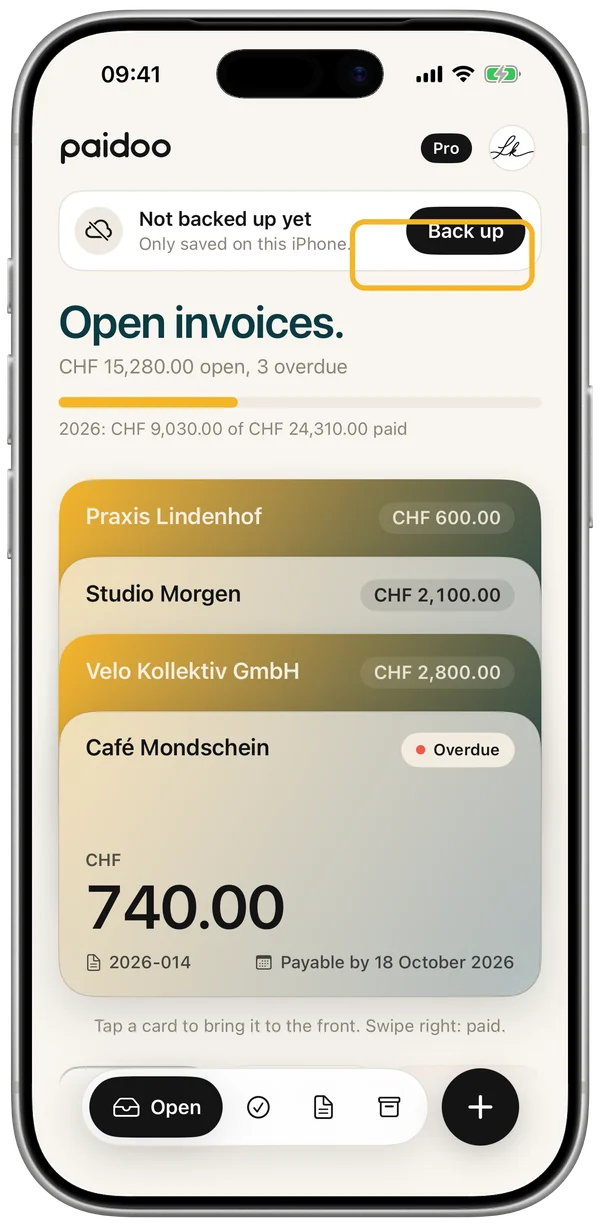
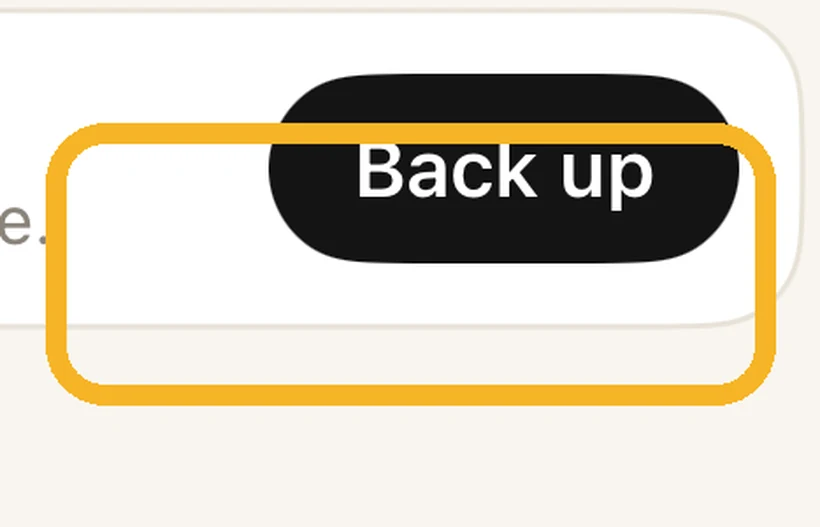
Tap «Back up» and choose how: iCloud or a backup file.
Several businesses
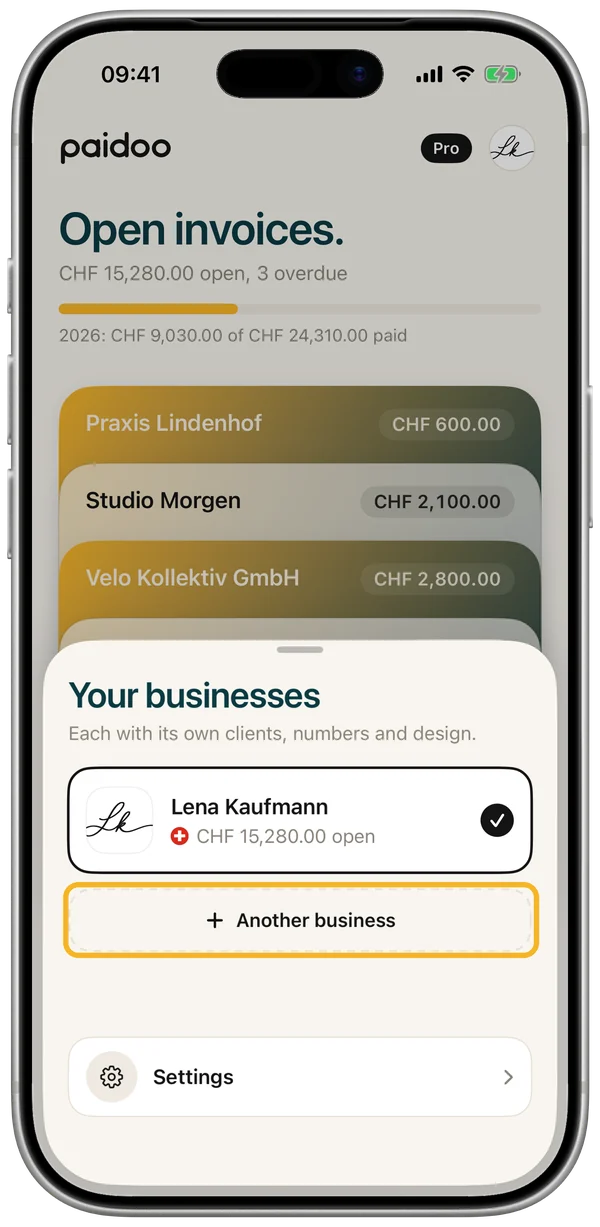
Side job, company, club: in Paidoo you run several businesses, each with its own clients, numbers and design.
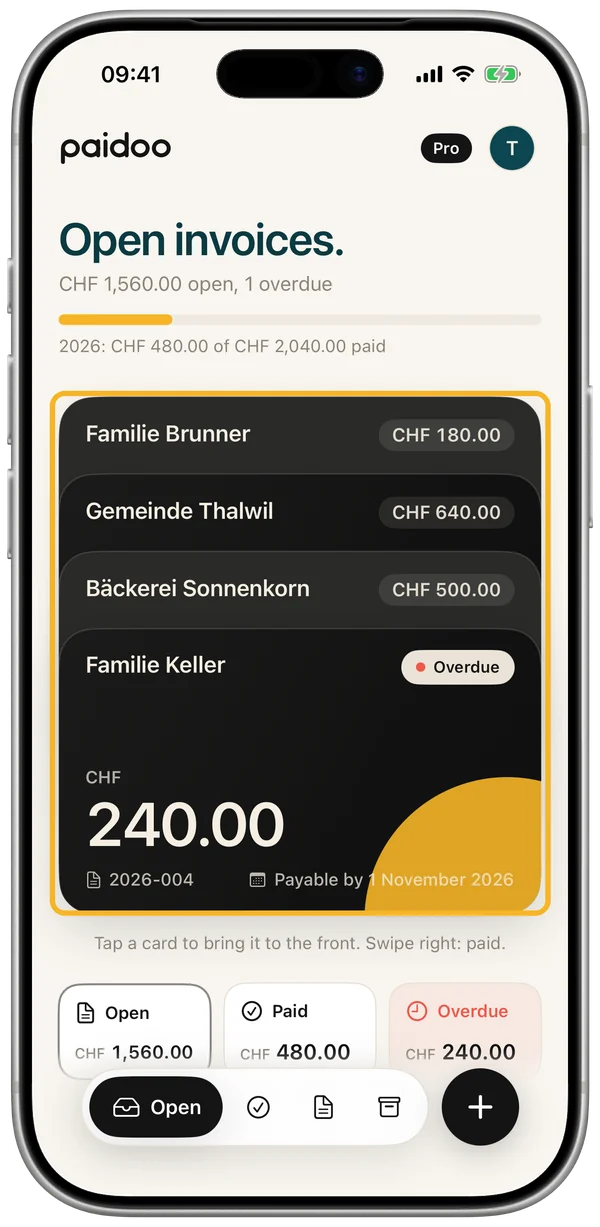
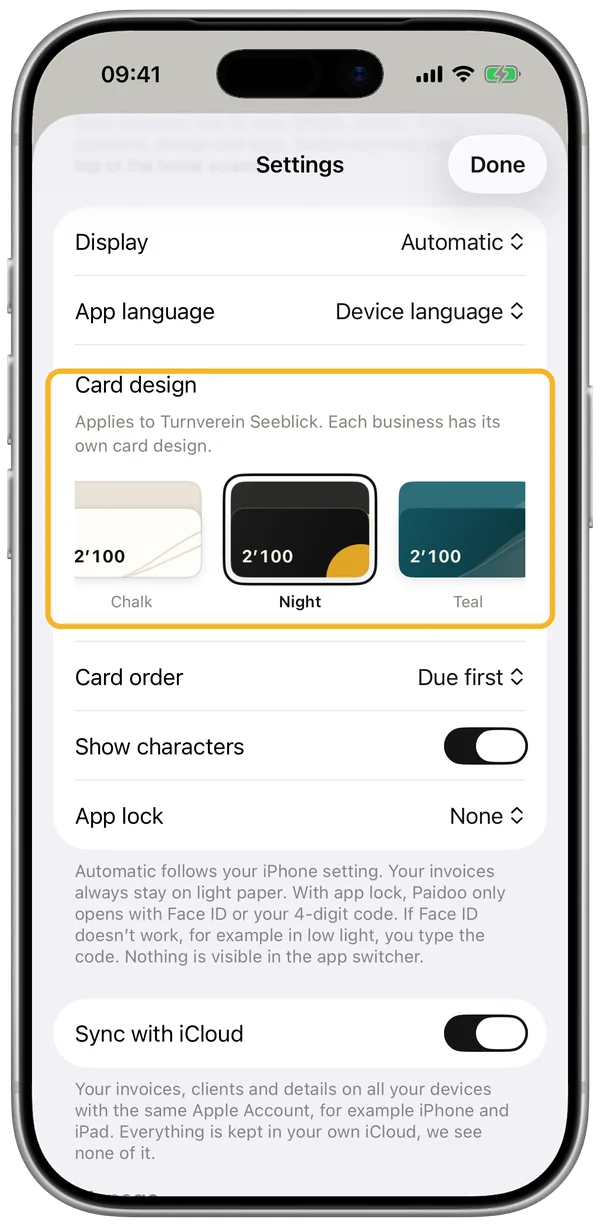
Each business also has its own card design. So the stack of cards shows at a glance which one you are in. A new business automatically gets a design none of the others has. You can change it in Settings under «Card design».
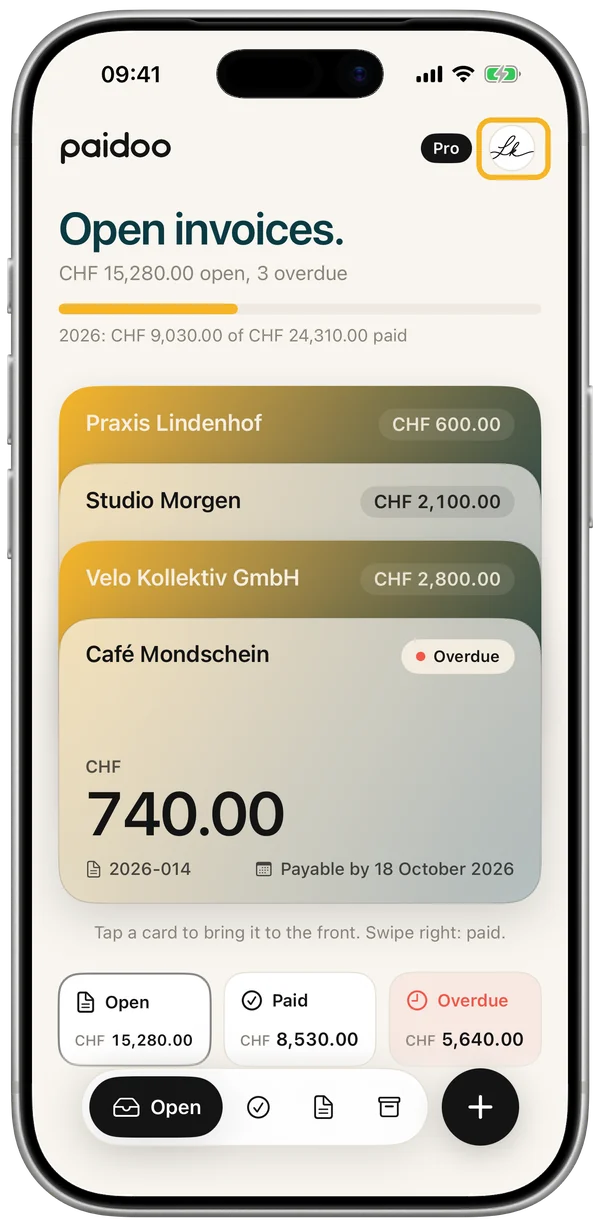
On the home screen, tap the round button with your logo at the top right. Under «Your businesses» you switch with one tap, or add a new one with «Another business». On Mac and iPad the button is also at the top right.

How it works, step by step
Favourites, tone and card colour
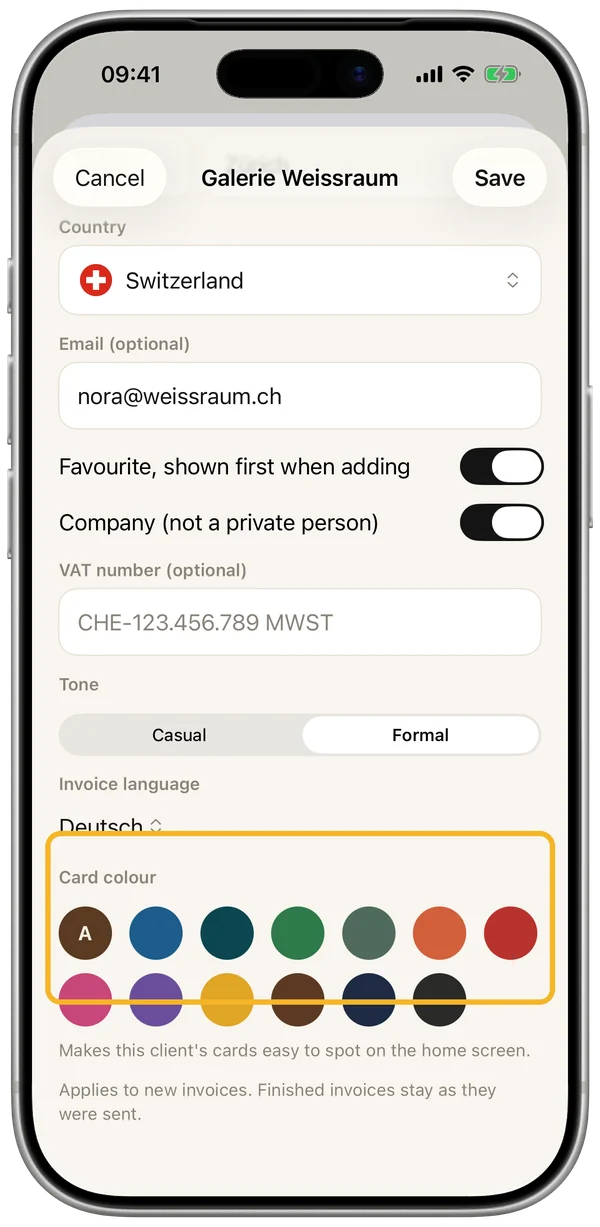
On iPhone you find your clients under Settings, «Manage», «Clients», on Mac and iPad in the sidebar. Open a client and tap «Edit».
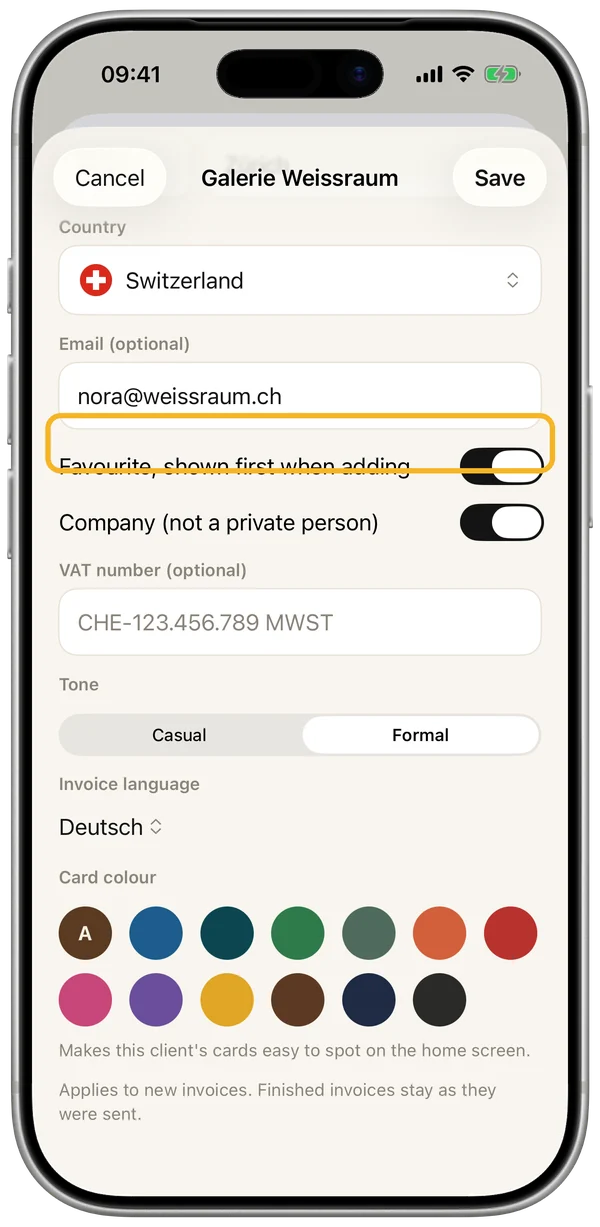
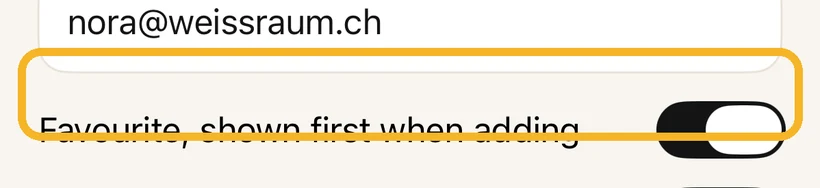
With «Favourite, shown first when adding», the client is at the very top when you write an invoice.
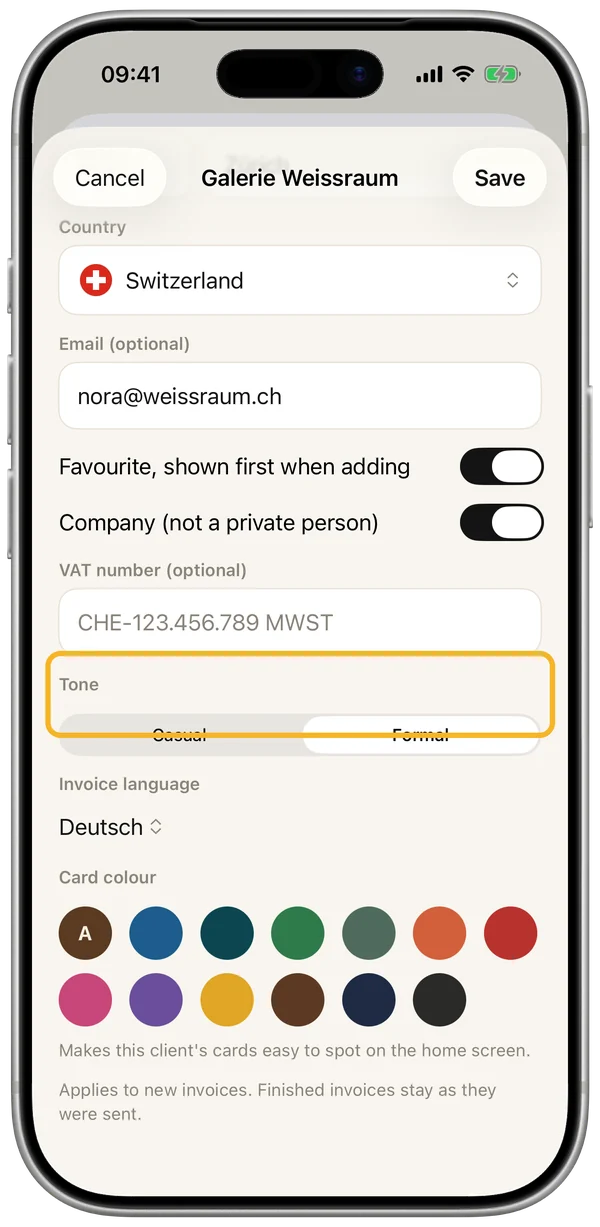
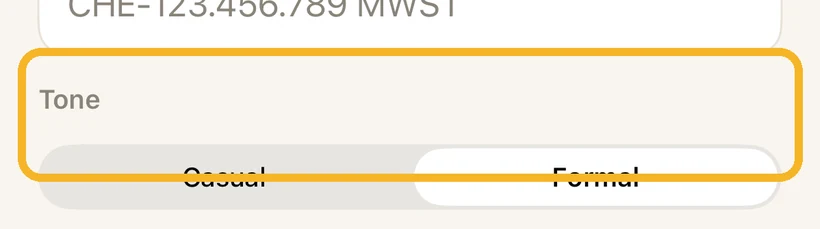
Under «Tone» you choose «Casual» or «Formal». Paidoo writes reminders and emails to match. You can also choose the tone in the «Who» step while writing, and it is remembered for the client.
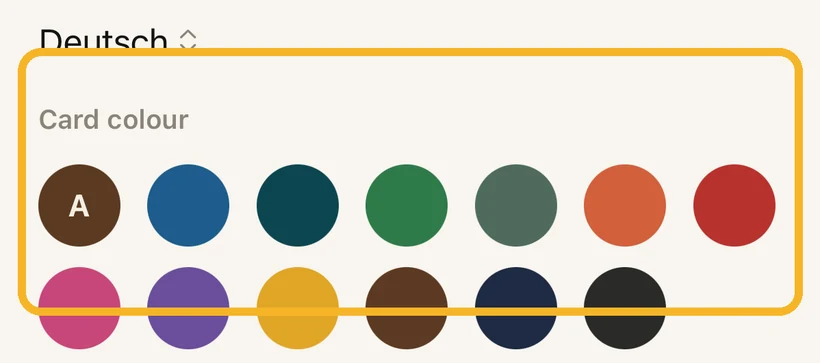
With the «Card colour» you recognise this client’s cards on the home screen at a glance.
How it works, step by step
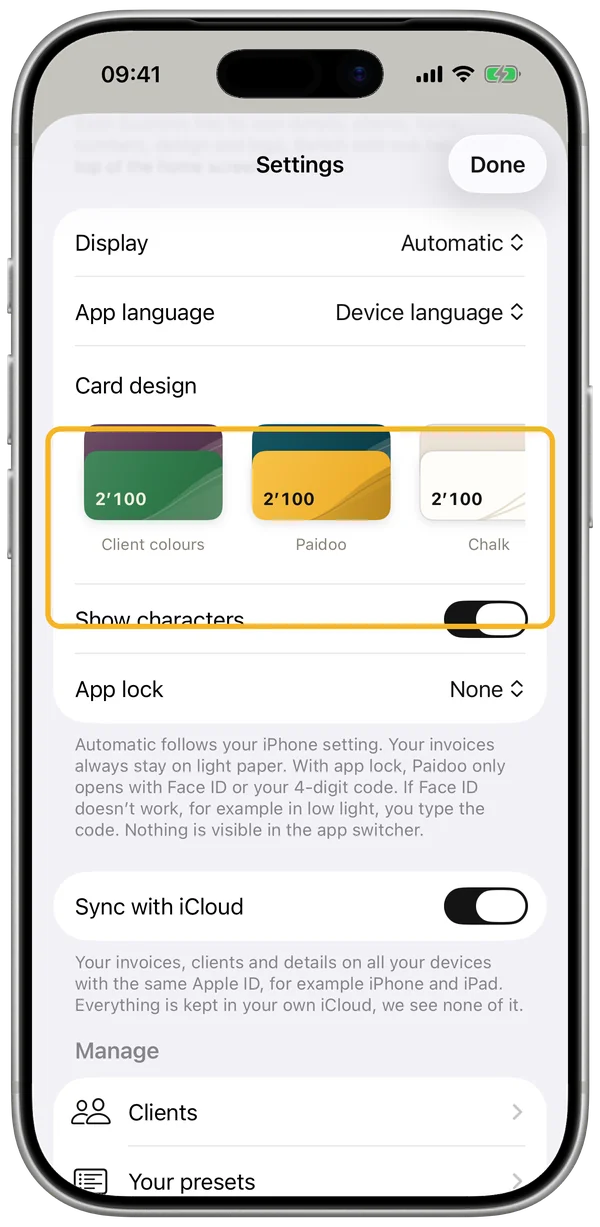
Light, dark and card design
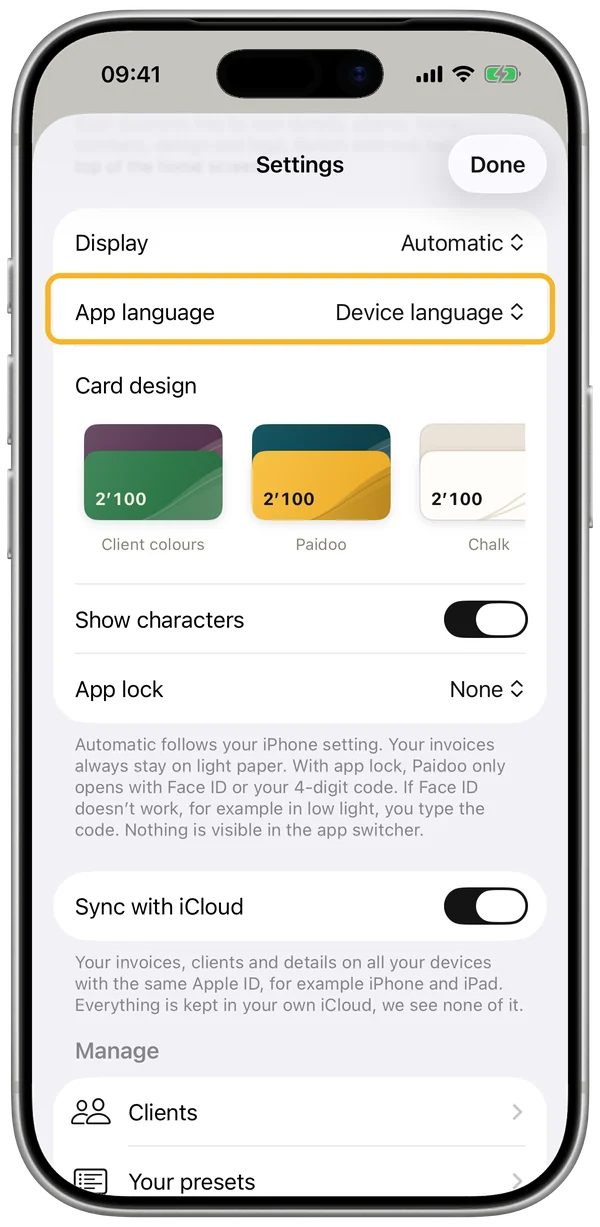
In Settings, under «Display», you choose «Automatic», «Light» or «Dark». Automatic follows your device. Your invoices always stay on light paper.
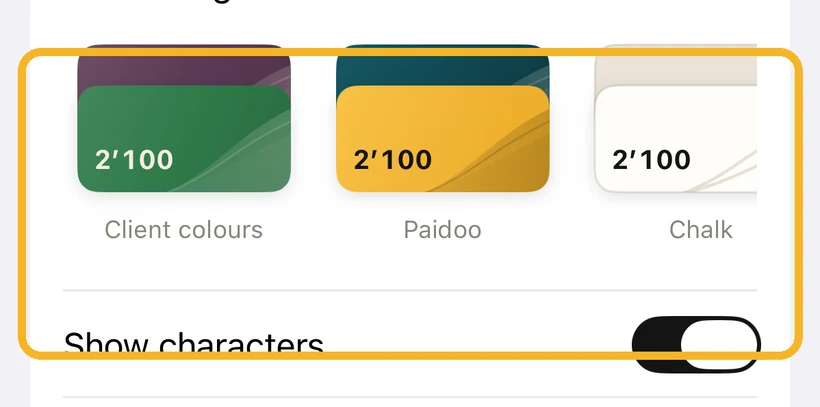
With «Card design» you decide how the cards on the home screen look, for example in «Client colours» or «Frosted glass».
On Mac and iPad you switch between light and dark with one click at the bottom of the sidebar. «Show characters» shows or hides the characters there.
How it works, step by step
What Paidoo checks and what it does not
Paidoo is a tool for writing invoices. You can adjust every text, every amount and every field yourself.
The check before sending shows the usual mandatory details. It is an aid, not a guarantee and not tax or legal advice.
You are responsible for the content of your invoices, taxes and record keeping. If in doubt, your accountant or tax adviser can help.
In some countries, invoices to businesses only go electronically through a government system, for example in Italy, Belgium and Poland. A PDF is not enough for that.
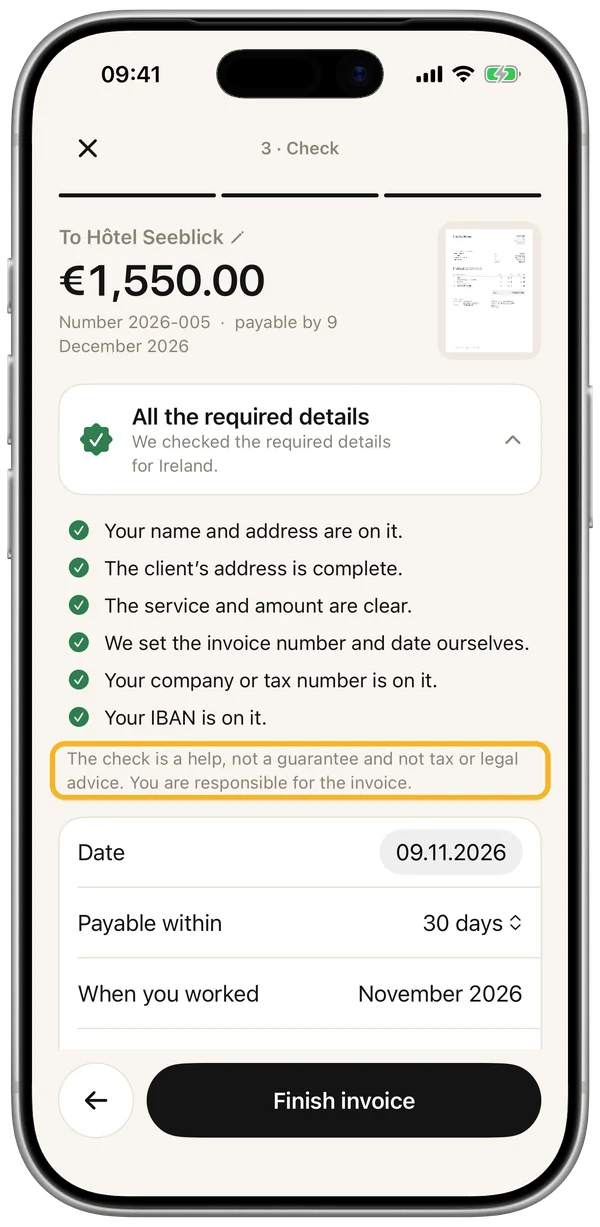
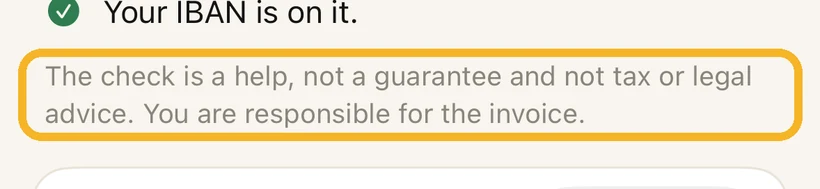
Before sending, the «Check» step shows what is on the invoice and what is still missing. Marked in yellow: the check is a help, not a guarantee. You are responsible for the invoice.
More questions?
Write to us at support@paidoo.app. We usually reply the same day. An idea for Paidoo? Suggest it here.