
Art
Invoice for art and illustration: work, rights and shipping kept apart.
Commissioned painting, illustration, portrait or art print: how artists and illustrators write an invoice, with frame and shipping as separate items.
- 5 invoices free
- No subscription
- No account

In short
You paint on commission, illustrate for publishers and companies, or sell prints. In Paidoo you choose "Art and illustration" during setup and tap presets such as "Commissioned painting", "Illustration" or "Art print". Enter your price, check, then send the PDF or print it and put it in with the work.
iNo guarantee. We explain the basics to the best of our knowledge, as of November 2026. The information applies to Switzerland unless stated otherwise. Laws, rates and thresholds change and depend on your situation. This is not legal or tax advice. If in doubt, ask your tax office or a professional.
Invoice for artists: when and how
With a commissioned painting or a portrait, you first agree what is wanted: size, technique, date. You put that in a quote, which is free in Paidoo. When the picture is finished, one tap turns it into the invoice.
If you sell a finished work or prints, for example at an exhibition or after an enquiry on Instagram, you write the invoice right away on your iPhone. For companies and publishers, the "Illustration" often comes with a "Usage rights" item.
The presets Paidoo suggests
If you choose «Art and illustration» during setup, Paidoo suggests these items. You tap them, adjust quantity and price, and add your own.
- Illustration
- Commissioned painting
- Portrait
- Art print
- Usage rights
- Frame
- Shipping
How to write it in Paidoo
An invoice takes three short steps, then it is done.
- 01Who
Pick a customer, type a new one or import one from Contacts.
- 02What
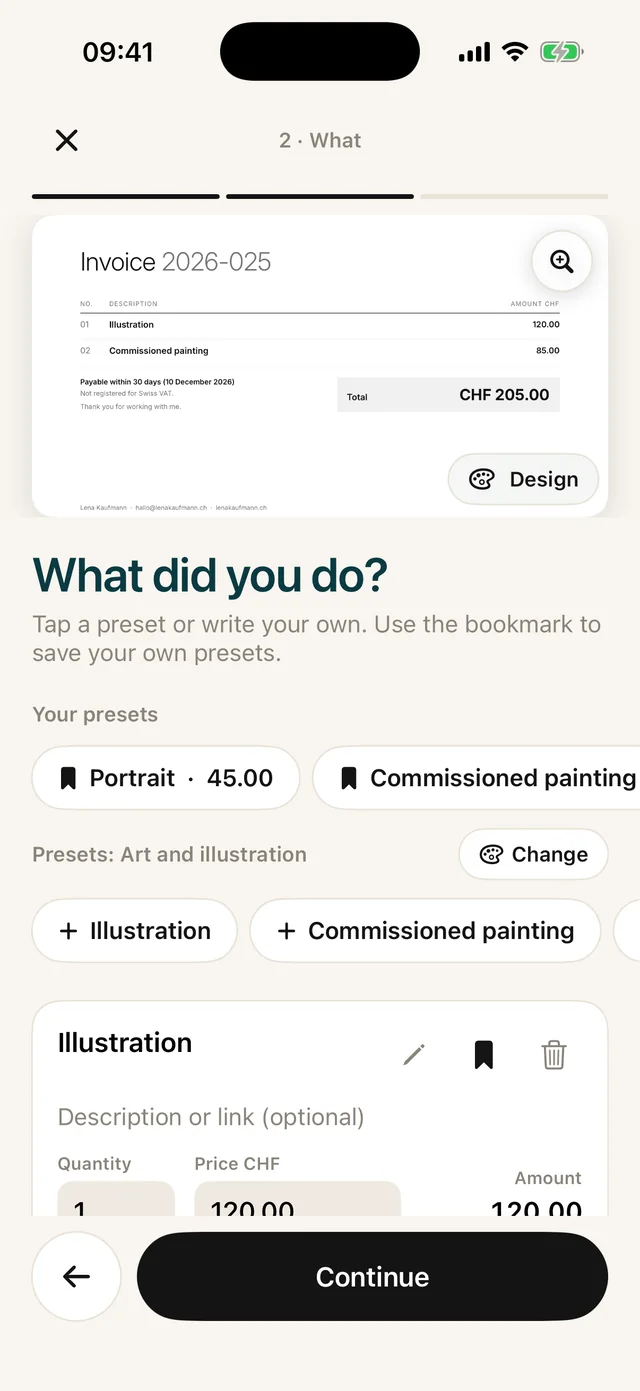
Tap presets such as «Illustration» or «Commissioned painting», then enter quantity and price. Save your own items with the bookmark.
- 03Check
Enter the date or period under «When you worked» and choose the payment term. Paidoo shows whether the usual required details are on it.
- 04Done
Send the PDF by e-mail or message, or print it. In Switzerland and Liechtenstein the QR payment part is added.
Practical tips
- Describe the work so that it can be recognised: title, technique, size. That goes in the item’s description.
- List "Frame" and "Shipping" separately from the work. The buyer sees what the picture costs and what comes on top.
- For illustrations for companies: "Usage rights" on its own line, with a sentence in the description about what the illustration is used for, just as you agreed.
- For art prints, enter the number of pieces as the quantity. For an edition, it helps to note in the description which numbers they are.
In Paidoo
How it works, in three steps.
- 1Choose your activity
Choose «Art and illustration» during setup. Paidoo suggests matching presets.
- 2Write the invoice
Pick the customer, tap your presets, check.
- 3Send
Send it as a PDF or print it. If someone does not pay, you send a reminder from the open invoice.
Questions
Frequently asked questions.
Write to us. We answer personally, usually the same day.
support@paidoo.appCan I write the invoice in the buyer’s language?
Yes. In Paidoo you choose the invoice language for each client, with 22 to pick from. You can also choose the currency for each invoice, with 10 available.
Can I give a receipt with a picture I have sold?
Yes, with Paidoo Pro you can write receipts. Pro costs CHF 29 once, 29.99 EUR in the EU, with no subscription.
How much does Paidoo cost?
The app is free, and so are the first 5 invoices. Quotes do not count. For more invoices you buy Paidoo Pro once for CHF 29, or 29.99 € in the EU. There is no subscription.
Can I save my own items and prices?
Yes. Write the item at the «What» step and tap the bookmark. It then appears under «Your presets», with its price.
You do the work.Paidoo does the invoice.
Invoices in a minute on the iPhone, iPad and Mac. No account, no subscription, your data stays with you. The first 5 invoices are free, Pro is a one-off CHF 29.