
Help
Switching iPhone: take everything with you.
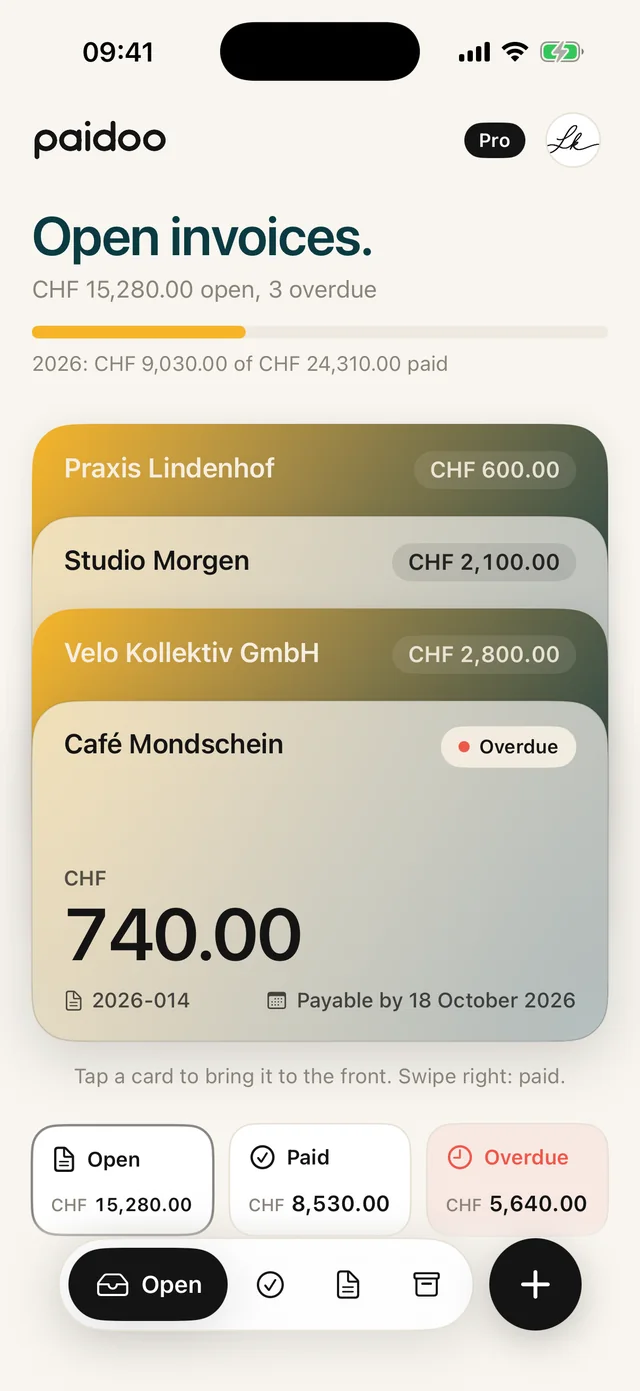
New iPhone, iPad or Mac? With the same Apple ID, Paidoo fetches your invoices from iCloud. With a new Apple ID, a backup file does the job.
- 5 invoices free
- No subscription
- No account
In short
Your data is tied to your Apple ID, not to a Paidoo account. iCloud sync is switched on by default, so on your new iPhone, iPad or Mac everything usually comes back by itself. If you change your Apple ID or work without iCloud, you take your data with you in a backup file.
iNo guarantee. We explain the basics to the best of our knowledge, as of November 2026. The information applies to Switzerland unless stated otherwise. Laws, rates and thresholds change and depend on your situation. This is not legal or tax advice. If in doubt, ask your tax office or a professional.
Which way suits you
| Your situation | How your data comes along |
|---|---|
| New device set up from your iCloud backup | Paidoo is back right away with all your invoices. |
| New device set up as new, same Apple ID | Download and open Paidoo. The app fetches your data from iCloud by itself. |
| New Apple ID | Create a backup file on the old device and restore it on the new one. |
| iCloud sync switched off | Create and restore a backup file, or set up the new device from your iPhone backup. |
With the same Apple ID
If you set up the new iPhone or iPad from your iCloud backup, Paidoo is back right away with all your invoices. You do not need to do anything else.
If you set it up as new, download Paidoo from the App Store and open the app. If you are signed in to iCloud with the same Apple ID, Paidoo fetches your invoices, customers, details and logos by itself.
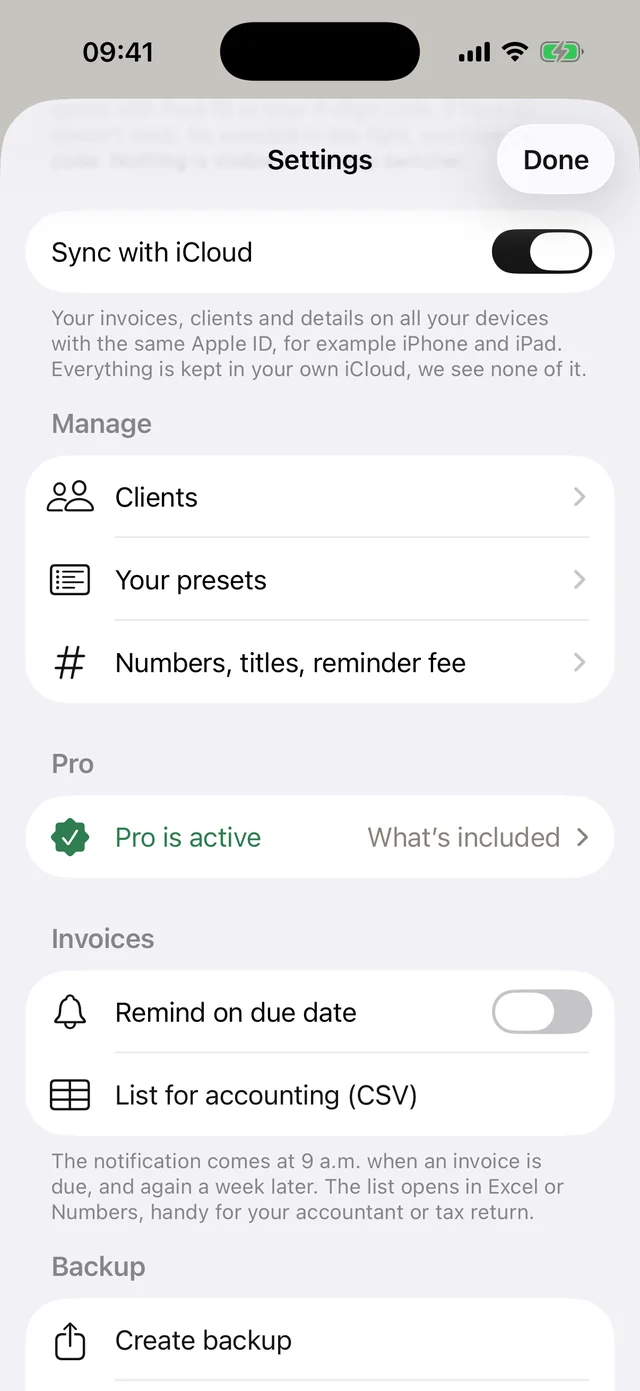
If your data does not appear, check in Paidoo under Settings that «Sync with iCloud» is switched on. In the iPhone settings, check that you are signed in with the same Apple ID. Pull down on the home screen to fetch the latest state.
With a new Apple ID
iCloud belongs to the Apple ID. With a new Apple ID, Paidoo cannot see the data of the old one. If you sign in on the same device with the new Apple ID, Paidoo asks whether your data should go to this iCloud. To take it to another device:
- On the device that still has your data: open the settings (person icon top right) and tap «Create backup» under «Backup».
- Bring the file to the new device via AirDrop, Mail or Files.
- On the new device, download Paidoo, set it up briefly and tap «Restore backup» under «Backup».
- Invoices, customers, numbers and logo are then back.
If you no longer have the old device, briefly sign in with the old Apple ID on any iPhone or iPad, open Paidoo and create the backup there.
With a backup file
- On the old device, tap «Create backup» under «Backup».
- The file is called, for example, «Paidoo-Backup-2026-11-08». Save it in Files or iCloud Drive, email it to yourself or send it to the new device with AirDrop.
- On the new device, download Paidoo and set it up briefly. Then tap «Restore backup» under «Backup» and choose the file.
- Paidoo shows the date of the backup and how many invoices and customers it contains. Confirm with «Restore and replace».
Important: restoring replaces what is currently in the app. So do it right after setting up, before you write invoices on the new device.
The file contains all invoices, quotes, credit notes, delivery notes and receipts, your customers and items, your details with logo and signature, the numbers and all your companies.
What you set up again on the new device
- Paidoo Pro: with the same Apple ID, the app recognises your Pro by itself. Otherwise tap «Restore previous purchase» under «Pro».
- App lock: set up Face ID or the code again under «App lock». For security, the code only stays on the device where you set it.
- Reminders: switch «Remind on due date» under «Invoices» back on and allow notifications.
- Appearance: set light or dark again if you like.
Before you give away the old device
- Open Paidoo on the new device and check that your latest invoices, customers and your logo are there.
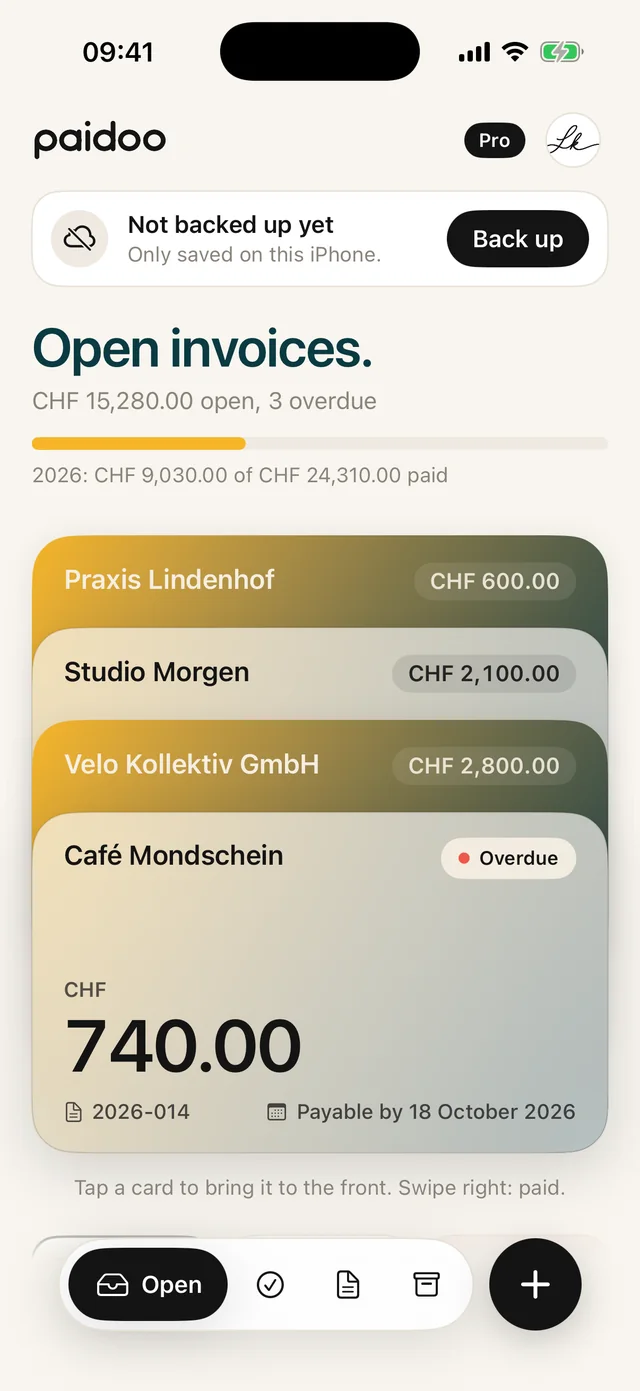
- If you work without iCloud sync, create one last backup file on the old device and keep it somewhere else, for example on a computer.
- With iCloud sync or an up-to-date backup file, your invoice numbers carry on counting on the new device.
- Only reset the old device once everything is there.
In Paidoo
How it works, in three steps.
- 1Same Apple ID
Download and open Paidoo. With iCloud sync, your data comes back by itself.
- 2New Apple ID or no iCloud
«Create backup» on the old device, «Restore backup» on the new one.
- 3Pro and lock
If needed, «Restore previous purchase» and set up the app lock again.
Questions
Frequently asked questions.
Write to us. We answer personally, usually the same day.
support@paidoo.appWill I lose my invoices if I delete the app?
Not as long as iCloud sync is switched on, as it is by default. A copy is then kept in your own iCloud, and Paidoo fetches it again with the same Apple ID. If sync is off, you need a backup file or an iPhone backup.
I have a new Apple ID. Is my data gone?
No. It is still on the old device and in the iCloud of the old Apple ID. If you sign in on that device with the new Apple ID, Paidoo asks whether the data should go to the new iCloud. For another device, create a backup file and restore it there.
Do I have to buy Paidoo Pro again?
No. Pro is a one-off purchase for your Apple ID. With the same Apple ID, Paidoo recognises it by itself, otherwise tap «Restore previous purchase» under «Pro».
Can I merge a backup with my new data?
No. When you restore it, the backup replaces what is currently in the app. So restore it before you write new invoices on the new device. iCloud sync, on the other hand, combines the data of both devices.
How often should I make a backup?
iCloud sync keeps your devices the same, the backup file is for emergencies. So make one now and then, for example before switching devices. If sync is off, Paidoo reminds you roughly once a month. Keep the file outside the device, for example in iCloud Drive or on a computer.
Does this also work between iPhone and iPad?
Yes. With iCloud sync and the same Apple ID you have the same invoices, customers and details on iPhone, iPad and Mac.
Do my invoice numbers carry on on the new device?
Yes. With iCloud sync or an up-to-date backup file, the numbers come along and Paidoo carries on counting there. So only create the backup file once you no longer write invoices on the old device.
Can I reset the old iPhone afterwards?
Yes, as soon as everything is there on the new device. With iCloud sync switched on, a copy is kept in your iCloud. Without iCloud, create a backup file first and keep it outside the device.
You do the work.Paidoo does the invoice.
Invoices in a minute on the iPhone, iPad and Mac. No account, no subscription, your data stays with you. The first 5 invoices are free, Pro is a one-off CHF 29.